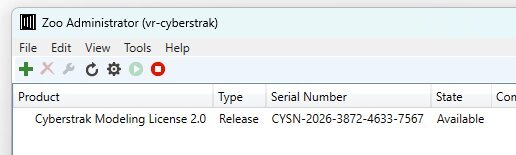
Cyberstrak supports the Rhino LAN Zoo for the usage of license keys on several computers ("Floating Licensing"). To use this license scheme you need to purchase in the Cyberstrak Online store a Zoo based license ("perpetual"). This license has no expiration date, but can be used in a network only for a dedicated number of parallel Cyberstrak users.
With the purchase if such a license you receive an E-mail with the license key(s) together with instructions how to activate it.
The following steps are required to add your license to the Rhino LAN Zoo:
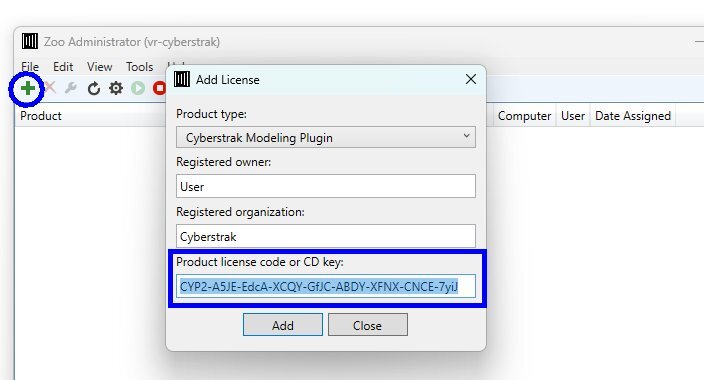
Now the new license key should be shown as "Available" in the Zoo admin panel. If you start Rhino now you should be able to use the Cyberstrak commands with the new license. If the Cyberstrak Plugin is still in trial mode you can start the command "CSLicense". There you can explicitely switch from "Subscription" to "Zoo Licensing".
Further information you can find also in the Online manual of the Cyberstrak Plugin (chapter "Licensing - LAN Zoo License").